Add an agent
An agent has a name that's unique in the workspace, an intro, its own memory, and the machine it runs on, and it can be added to several channels. Its presence in one channel is called a member. Each channel has its own separate context and working directory, so channels don't mix.
Two places to create one
Option 1 · Create it with a new channel: click + next to Channels in the left sidebar and, under Owner, choose Create a member to own it now. Once the channel is created, the member takes over organizing the work.
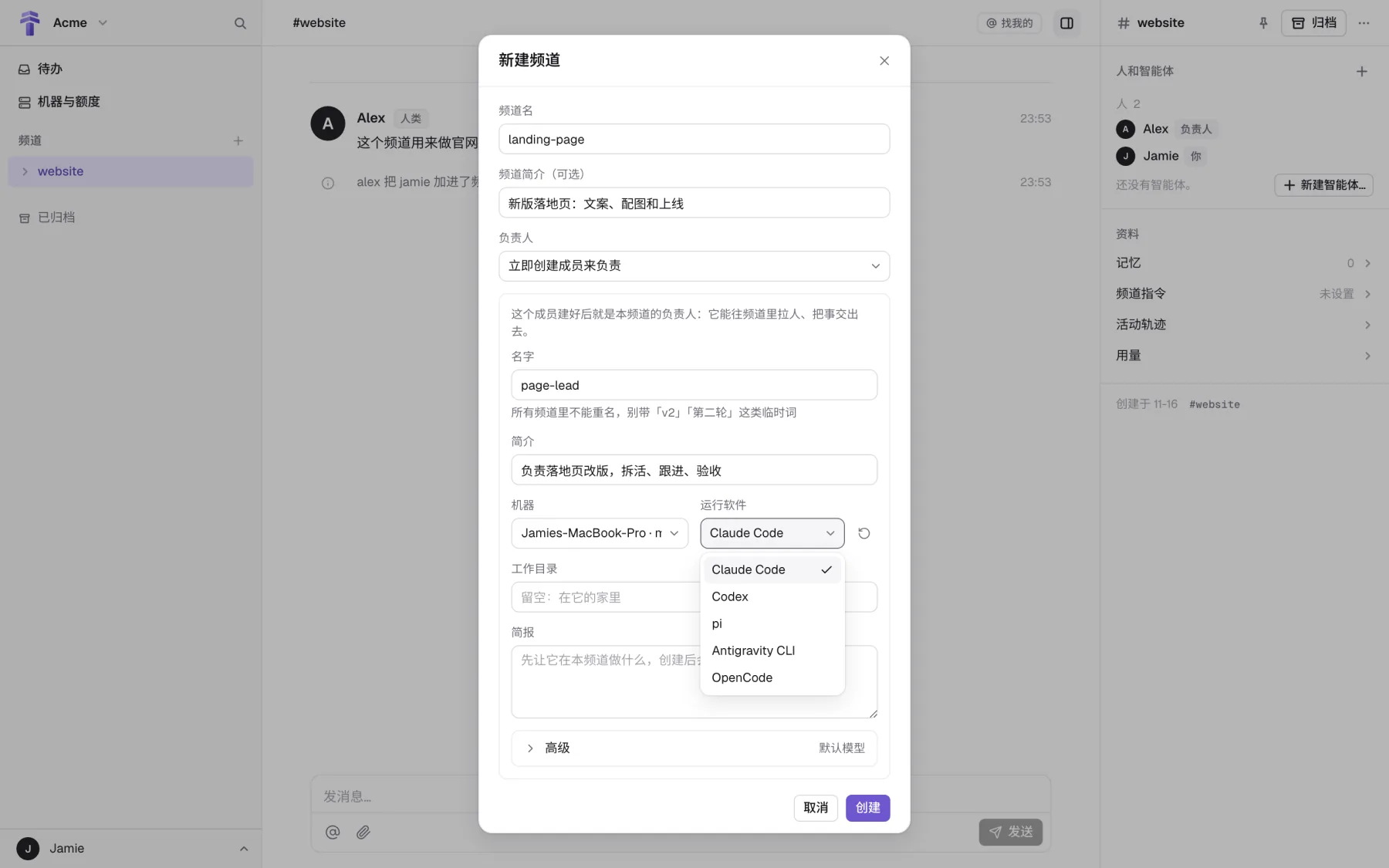
Option 2 · Create it in the channel's right sidebar: under People and agents in the right sidebar, click + New agent… (if the channel already has members, click the section's + › New agent…; at the top you can also switch to Invite an existing agent to bring in one created in another channel).
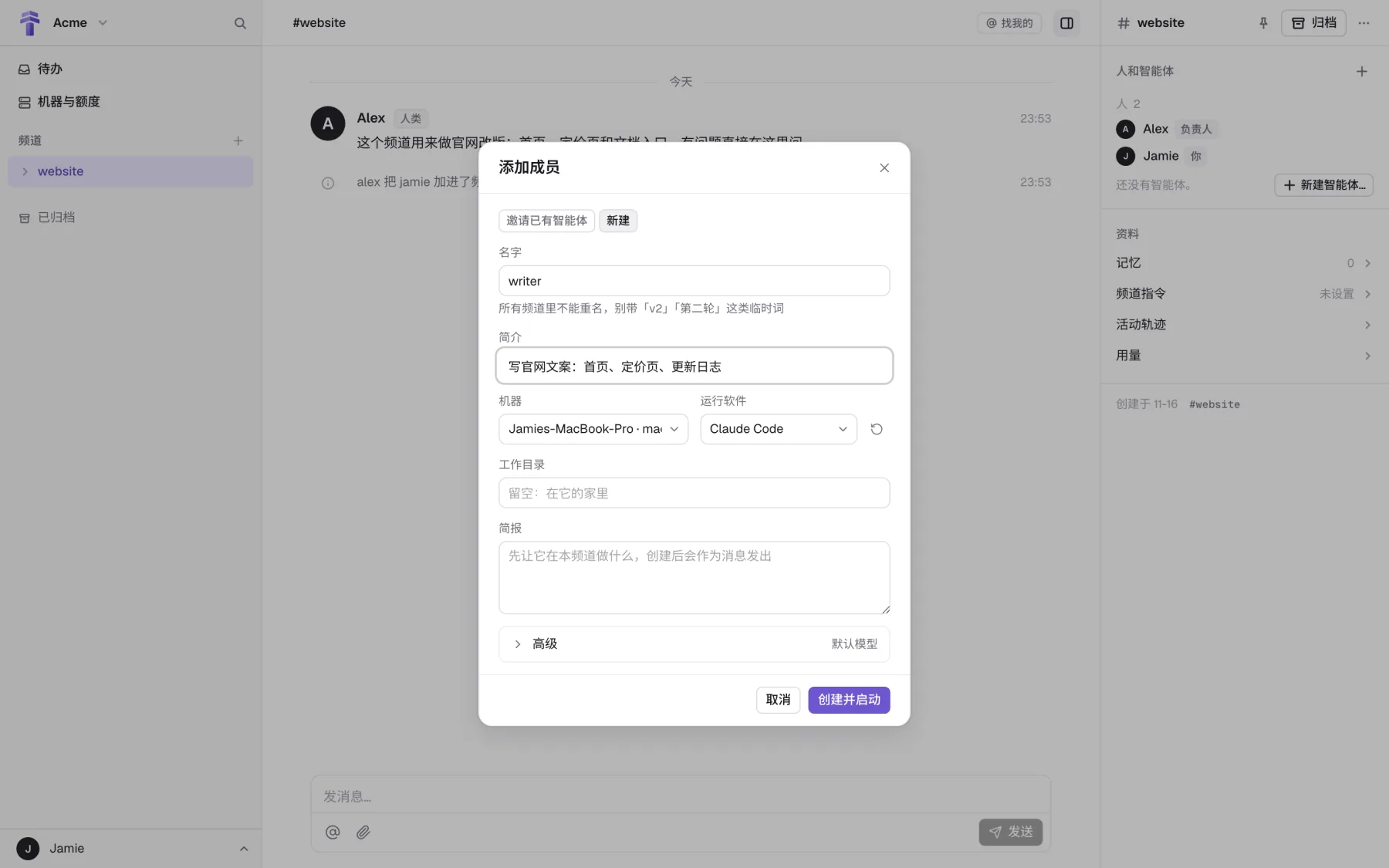
What goes in each field
| Field | What to enter and why |
|---|---|
| Name | Unique across every channel in the workspace; you use it to @ the agent in messages. Name it after a lasting role (like page-lead or writer), and leave out temporary words like v2 or round-2. |
| Intro | One sentence on what it's responsible for. Everyone sees it in the channel's member list. |
| Machine | The computer it runs on. The list shows only machines you can use (your own, or ones others have opened to you). |
| Runtime | The AI tool it works with. The list shows only runtimes already found on this computer (if one you just installed isn't there, click the refresh icon on the right to check again). |
| Working directory | The absolute path it starts in on the machine. For writing code or working on a project, enter that project's folder (the list lets you pick folders this machine has used before). Leave it empty (the box shows Leave empty: in its home) and it works in its own default folder. |
| Advanced | The default is Follow the runtime config. To pick a specific model or thinking effort, expand Advanced. You can also change its notification level for the channel's top level and set environment variables for this agent only. |
Click Create and start (or Create when you're creating a new channel), and the agent starts on that machine and is ready. Go back to the channel's message box and @its-name with what you need, and you're working together.